The moment your music starts sounding like a phone call
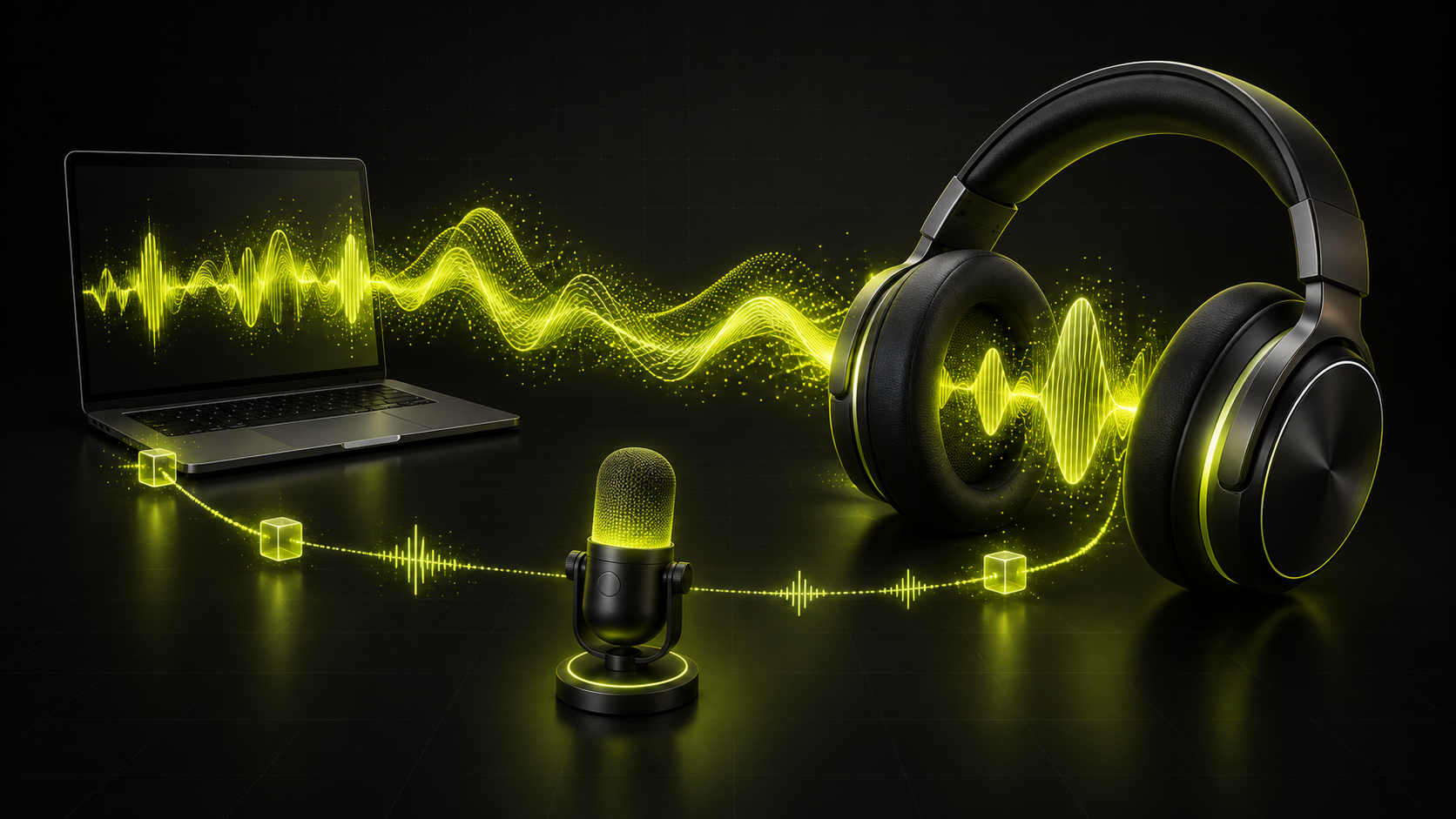
You are listening to a familiar song when you join a meeting. Suddenly, the instruments lose their sparkle, the stereo image narrows, or everything sounds distant. Leave the meeting and the music becomes clear again. It is tempting to blame the song, the streaming service, or a broken pair of headphones.
The useful clue is the timing. If the change happens when an app starts using the headset microphone, the computer may have changed the Bluetooth audio connection. A meeting, game voice chat, browser tab, or recording tool can trigger this. Even opening a microphone test can be enough; you do not have to be speaking.
A2DP and HFP do different jobs
A Bluetooth profile describes what a connection does. With Bluetooth Classic, A2DP handles higher-quality media playback from your computer or phone to the headphones. HFP supports conversation in both directions: you hear the other person while the headset sends your voice back. A2DP itself does not carry the headset microphone signal.
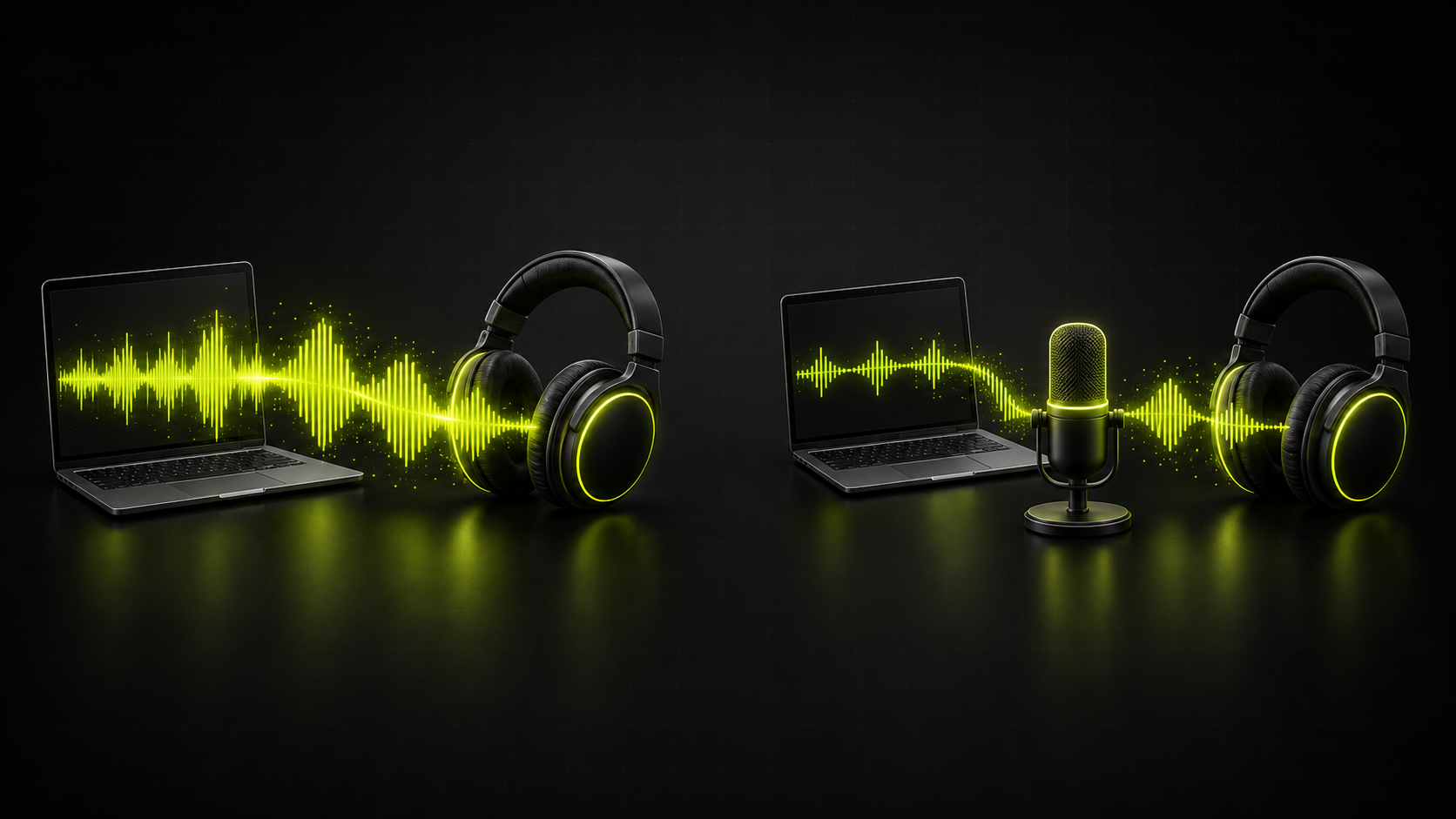
The conversational path prioritizes speech and offers different audio capabilities. Windows documents Classic HFP playback and microphone capture as mono, with a narrower frequency range than normal music playback. That can make a full song sound noticeably thinner. The exact change depends on the headset, operating system, and negotiated speech mode.
This is a change of connection mode, not simply a volume setting. Turning the volume up cannot bring back stereo separation or frequencies that the active mode does not carry. Also, a communications app can influence routing independently of its selected microphone, so an external mic is a useful test rather than a universal guarantee.
Your audio file and your Bluetooth codec are separate
Think of playback as a chain: the app reads a file or stream, produces audio, and sends it through the chosen output connection. A file format such as MP3, Opus, or FLAC describes the stored audio. The Bluetooth connection has its own profile and codec choices. Those are different decisions at different points in the chain.
Converting a song from Opus to MP3 will not force the headset to stay in music mode. Neither will replacing it with a larger WAV file. Conversion can solve file compatibility problems, but it does not change how a conferencing app opens a Bluetooth microphone. Keep the original and diagnose the output path before making new copies.
Run a simple before-and-after microphone test
Choose a familiar local recording and play the same short passage at a comfortable, unchanged volume. First, close meeting apps, voice chats, recording tools, and browser tabs that might use the microphone. Then open one app, select the headset microphone, and start its microphone test. Listen for a repeatable change rather than a small difference from memory.
Next, choose the laptop microphone or a USB microphone in that app while leaving the Bluetooth headphones as output. Stop and restart the test if necessary. If playback improves, the headset conversation path is a likely explanation. If it does not, check the app's output choice too. Merely pressing mute may leave microphone capture active, so mute is not a reliable control.
If the sound stays poor with every microphone app closed, broaden the diagnosis. Try another recording and another playback app, then compare a different output device. A problem confined to one file suggests a source issue; intermittent crackling or dropouts without microphone use calls for checking the connection rather than assuming a profile switch.
Practical changes to try before replacing your headphones
Start by closing unneeded microphone apps completely, including voice chat running in the background. Check input and output choices inside the calling app as well as in system settings. For calls at a desk, using the computer's built-in microphone or an existing USB mic can let compatible setups keep the headphones on the media playback path.
If the call has ended but sound remains thin, stop microphone tests and reselect the audio output. On a Mac, Apple recommends selecting the internal speakers and then the headphones again; it also advises closing Sound settings during diagnosis. Reconnecting Bluetooth is another reasonable next step after the app has released the microphone.
Compare before and after with the same passage. For an important call, test your chosen input in advance and check that other people can hear you. If simultaneous high-quality playback and microphone capture still do not work, try an available wired or USB audio connection that supports both. Check model-specific capabilities before buying replacements.
LE Audio changes the picture, but compatibility matters
LE Audio is a newer Bluetooth audio architecture that includes the LC3 codec. It should not be confused with a product merely advertising Bluetooth Low Energy for other functions. For simultaneous playback and microphone improvements, both the source device and headphones need the relevant LE Audio capabilities, with support from the operating system and drivers.
Microsoft documents improved playback during microphone use on supported Windows 11 LE Audio setups. Stereo during microphone capture requires Windows 11 24H2 or newer, compatible integrated hardware, the necessary system updates, and suitable manufacturer drivers. Not every computer with that Windows version qualifies. Consult the linked Microsoft guide for current requirements and available settings.
The practical lesson is to verify the whole setup. A Bluetooth version number alone does not tell you which conversation features will work on your computer. Equally, it is inaccurate to say that every Bluetooth headset must always lose stereo when its microphone activates. Classic audio behavior and newer supported LE Audio behavior need to be considered separately.
Match the symptom to the next useful check
Use this table to choose your next experiment. These are diagnostic starting points, not proof of a particular fault. Change one thing at a time so you can tell which action helped.
- Compare the same passage at the same volume
- Check the calling app's input and output separately
- Close microphone capture instead of only muting
- Verify LE Audio support across the whole setup
| Symptom | Possible cause | Next action |
|---|---|---|
| Music becomes thin when a call starts | The headset switches to a conversation path | Test a separate microphone and confirm the app's output |
| Sound stays poor after leaving the call | An app still captures the mic or routing has not recovered | Close microphone apps, then reselect or reconnect the headphones |
| Crackling occurs without any microphone use | Connection problems or a different playback issue | Compare another file, app, and output device |
| Expected LE Audio options are missing | Hardware, system, or driver requirements are not met | Check device support and the manufacturer's driver guidance |
Beginner FAQ
Does worse sound during a call mean my headphones are broken?
Usually, a repeatable change when microphone capture starts suggests a different connection mode. If the problem persists outside calls, compare other recordings and devices before deciding whether the headphones are faulty.
Will a separate microphone improve Bluetooth playback?
It can help by avoiding the headset microphone path. Select the separate input in the app and keep the headphones as output. Some apps still request a communications playback mode, so test your actual setup.
Will converting my recording to MP3 fix muffled call audio?
No. Conversion changes the stored file, while this problem concerns the active Bluetooth connection. Use conversion for file compatibility, and check microphone capture and output routing for call-related quality changes.
Do all Bluetooth Low Energy devices support LE Audio?
No. Bluetooth Low Energy support alone does not establish LE Audio support. Check the headphones, source hardware, operating system, and drivers, including the specific requirements for stereo playback while using a microphone.